
DLSS 4 changed what RTX cards are actually capable of. Not in a minor way, in a “your two-year-old GPU suddenly feels like an upgrade” way, but a lot of RTX owners are still running outdated settings, missing out on image quality improvements or frame rate gains that are literally just a few clicks away in the NVIDIA app.
This dlss 4 setup guide breaks down what each feature does, which settings actually matter for your GPU, and when Frame Generation helps versus when it hurts.
What DLSS 4 and 4.5 actually brought to the table
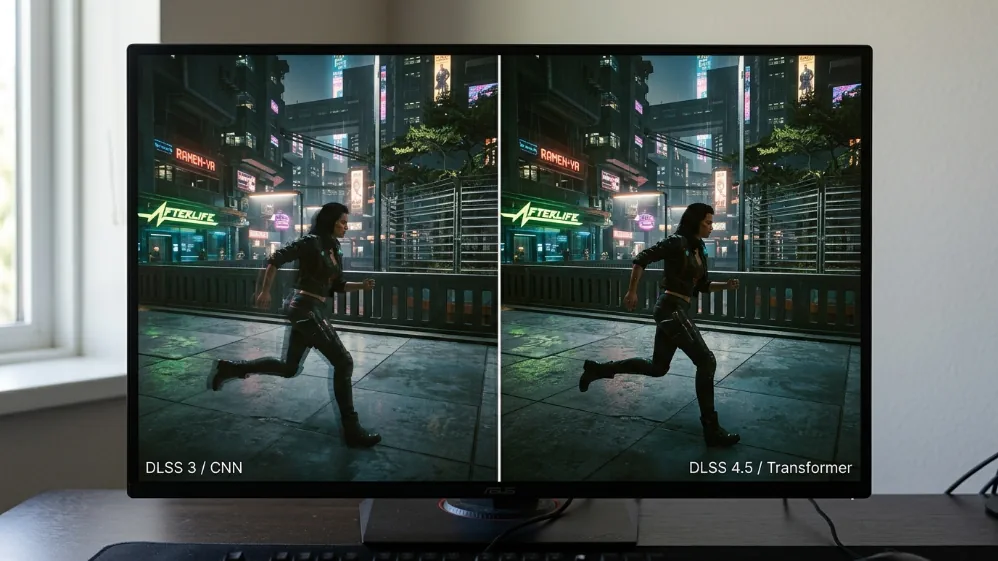
DLSS 4 launched at CES 2025 with two major changes over DLSS 3. First, it switched from a convolutional neural network (CNN) model to a transformer-based AI model, the same architecture that powers modern language AI, the result is sharper upscaling, significantly less ghosting, and better temporal stability. Second, it introduced Multi Frame Generation for RTX 50 Series GPUs, multiplying frame rates by generating up to three additional frames per rendered frame.
DLSS 4.5 followed at CES 2026 with a second-generation transformer model for Super Resolution, available for all RTX GPUs, though fully optimized for RTX 40 and 50 Series thanks to their FP8 hardware, RTX 20 and 30 Series cards can access the new model but with more limited efficiency depending on the game. Dynamic 6X Multi Frame Generation for RTX 50 Series launched March 31, 2026. Where 4.5 makes the biggest difference is Performance and Ultra Performance modes, that’s where fewer rendered pixels mean the AI has to do more work. According to NVIDIA’s internal testing and early independent reviews, Performance Mode in DLSS 4.5 can now match or approach native image quality in supported titles, a significant step up from DLSS 4.0, results vary by game and scene complexity, but in practice the gap with native has genuinely narrowed.
Here’s where every feature sits as of May 2026:
| Feature | Available On | What It Does |
|---|---|---|
| DLSS Super Resolution 4.5 | All RTX (20/30/40/50) | AI upscaling, better image quality, more FPS |
| DLSS Frame Generation | RTX 40 + 50 Series | 2X frame multiplier |
| DLSS Multi Frame Generation 4X | RTX 50 Series | Up to 4X frame multiplier |
| DLSS Dynamic MFG 6X | RTX 50 Series | Up to 6X adaptive frame multiplier |
| DLAA | All RTX | Anti-aliasing at native resolution |
Before you start: What you actually need
Three things you need:
- Any GeForce RTX GPU, RTX 20 series or newer
- Game Ready Driver 572.16 or later for DLSS 4, driver 591.74 brought DLSS 4.5 Super Resolution in January 2026, just install the latest available and you’re set.
- NVIDIA App version 11.0.6 or later, this is where the DLSS overrides live now, not in the old Control Panel
The NVIDIA App replaced NVIDIA Control Panel for these settings, if you’re still on the old Control Panel, grab the app from NVIDIA’s site and log in. You need it for everything in this guide.
DLSS 4 setup guide: enabling super resolution
Every RTX card gets this, RTX 20 series all the way to RTX 50.
The global override: Set it once for everything
- Open the NVIDIA App
- Click Graphics in the left sidebar
- Click Global Settings
- Scroll to “DLSS Override, Model Presets”
- Select “Recommended”
- Click Apply
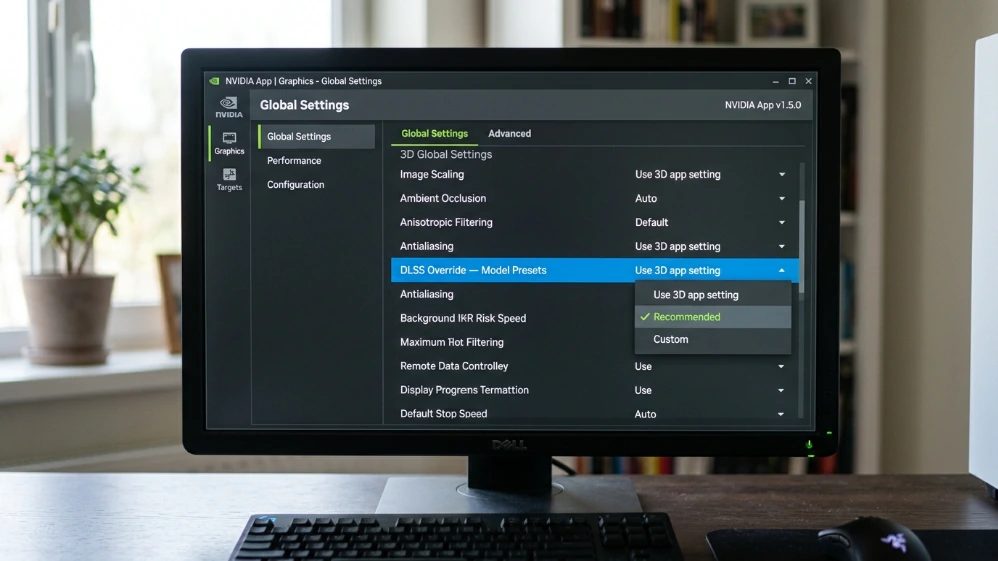
Done, every DLSS-supported game on your system now uses the latest transformer model automatically, NVIDIA recommends “Recommended” over “Latest” for DLSS 4.5, it intelligently matches the right model to your selected quality mode.
Per-Game settings: When you want more control
- Open the NVIDIA App
- Click Graphics → Program Settings
- Select your game from the list
- Scroll down to Driver Settings
- Find “DLSS Override, Model Presets” and set to Recommended
- Click Apply
Per-game settings take priority over the global override for that specific title, handy when one game responds better to a different preset than the rest of your library.
Older RTX cards: Which preset to pick
| Your GPU | Recommended Preset |
|---|---|
| RTX 20 or 30 Series | Preset K, best quality/performance balance in practice |
| RTX 40 or 50 Series | Recommended (auto-selects appropriate model) |
RTX 20 and 30 Series GPUs don’t have native FP8 support. In practice, Models M and L run on those cards but tend to cost more FPS without delivering proportional image quality gains, independent testing and community feedback consistently point to Preset K as the better compromise on older RTX hardware, The “Recommended” setting in the app generally handles this automatically, though results can vary by game.
Enabling frame generation override
Frame Generation doesn’t just toggle on from the NVIDIA App alone, you need Frame Generation enabled inside the game first, then the app override kicks in for titles that don’t have native DLSS 4 support built in.
How to enable it
- In-game: enable DLSS Frame Generation in the graphics settings, the option has to exist in the game first
- Open the NVIDIA App → Graphics → Program Settings → select your game
- Scroll to “DLSS Override, Frame Generation”
- Enable the override
For RTX 50 Series users, this override unlocks Multi Frame Generation 4X in titles that only have native Frame Generation support, for RTX 40 Series users, it upgrades the Frame Generation model to the latest version, which uses less VRAM and can increase frame rates beyond the original model.
Enabling the enhanced frame generation model (Preset B)
As of March 31, 2026, NVIDIA released an enhanced Frame Generation model that improves how UI elements, mini maps, health bars, HUD elements, render during Frame Generation, to enable it:
- Open “DLSS Override, Model Presets” (global or per-game)
- Click the Frame Generation dropdown
- Select Preset B
NVIDIA and its partners highlighted several major AAA titles as examples of games benefiting from the enhanced Frame Generation model (Preset B), including Borderlands 4, Dragon Age: The Veilguard, God of War Ragnarök, Hogwarts Legacy, Indiana Jones and the Great Circle, Marvel’s Spider-Man 2, Monster Hunter Wilds, Star Wars Outlaws, The Elder Scrolls IV: Oblivion Remastered, and The Outer Worlds 2 (as of March 31, 2026). The list is growing, check the NVIDIA RTX Games page for the current state.
When to use frame generation, and when not to
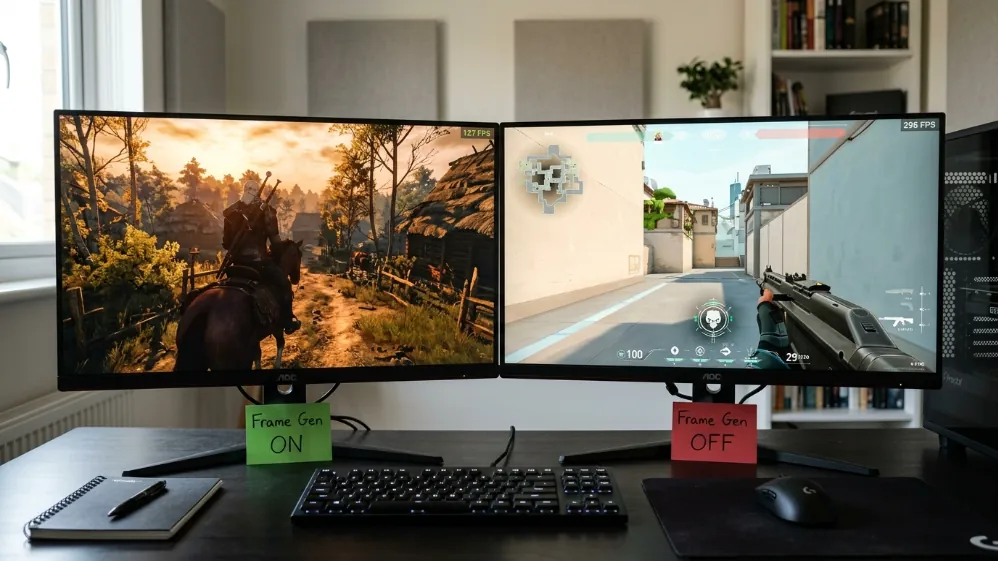
Frame Generation multiplies frame rates, It also adds latency, that tradeoff matters a lot depending on what you play.
When frame generation makes sense
Single-player AAA games, the latency addition is mostly imperceptible in story-driven games. If you’re running Cyberpunk 2077 or Hogwarts Legacy at 60 FPS native, Frame Generation pushes that to 100+ FPS with minimal downside, the visual experience improves dramatically.
High frame rate baseline, frame Generation works best when your native frame rate is already comfortable, At 40 FPS native, generated frames can feel less convincing, at 70+ FPS native, the result is smooth and natural.
When to leave it off
Competitive multiplayer, CS2, Valorant, Apex Legends, the additional latency that Frame Generation introduces is real and you’ll feel it in competitive scenarios, your aim suffers. DLSS Super Resolution alone is the right choice here, more frames, no latency penalty.
Already-low native FPS, If your GPU is already struggling below 40 FPS, Frame Generation masks the problem without solving it, better to lower settings first, get to a stable native baseline, then consider Frame Generation on top.
How to check your settings are actually working
Two quick ways to confirm everything is actually working:
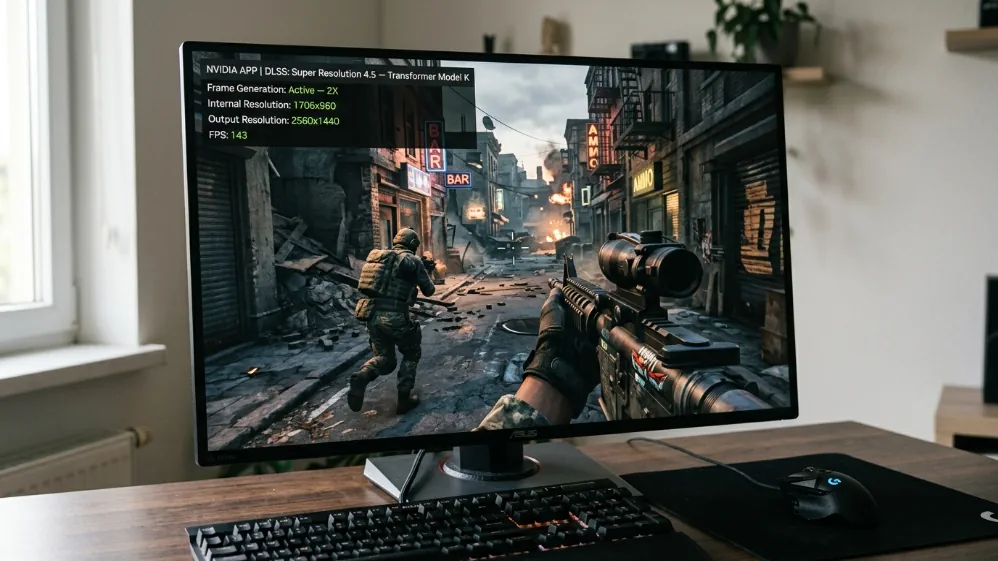
Method 1, NVIDIA App Overlay Press Alt + Z to open the overlay → navigate to Statistics > Statistics View > DLSS. This shows which model is active, Frame Generation status, and upscaling settings in real time.
Method 2, Stats Toggle Press Alt + R to toggle the statistics display on and off during a game session without going through the overlay menu.
Nothing showing up? Either the game doesn’t support DLSS at all, Frame Generation isn’t enabled inside the game settings, or the override didn’t stick, reopen the NVIDIA App, hit the Refresh button in the three-dot menu, and reapply, that fixes it 90% of the time.
Quick reference by GPU generation
| GPU | Super Resolution | Frame Generation | Notes |
|---|---|---|---|
| RTX 20 Series | Enable, Preset K | Not available | In practice, M/L models carry higher FPS cost on these cards |
| RTX 30 Series | Enable, Preset K | Not available | Same in practice, K gives better quality/performance ratio |
| RTX 40 Series | Enable, Recommended | Enable override (2X) | Full DLSS 4.5 quality with efficient FP8 |
| RTX 50 Series | Enable, Recommended | Enable MFG (4X or 6X) | Full stack, Dynamic MFG 6X from March 2026 |
How many games support it
As of May 2026, NVIDIA reports more than 250 games and apps with DLSS 4 or 4.5 support, with over 200 titles featuring (Multi) Frame Generation, these numbers grow regularly, the live count is on the official NVIDIA RTX Games page, NVIDIA has called this their fastest-adopted gaming technology in company history, and the adoption pace backs that up.
The override system means you don’t need to wait for every game to natively update, if a game already has DLSS Super Resolution, Frame Generation, or Ray Reconstruction support, the NVIDIA App override pushes the latest model to it once configured globally, in most cases you set it once and it applies across your library, though a small number of titles may require per-game settings for best results.
Full list on the official NVIDIA RTX Games and Apps page, last updated May 13, 2026.
All setup steps, requirements, preset recommendations, and game compatibility data sourced directly from NVIDIA official documentation: NVIDIA Help Center (DLSS overrides guide), NVIDIA GeForce News (DLSS 4.5 January 2026 launch, Dynamic MFG March 31 2026 update, Global DLSS overrides August 2025 update, RTX games list updated May 13 2026). PC Gamer DLSS 4.5 testing (January 13, 2026). XDA Developers DLSS 4.5 setup guide (January 27, 2026).
Pingback: RTX 5070 vs RX 9070 XT for 1440p Gaming (2026) - Fragtrix
Pingback: RTX 5060 Ti vs RX 9060 XT Compared (2026) - Fragtrix
Pingback: Best RTX 5070 Gaming PC Build 1440p for $1500 - Fragtrix