
quick summary
the best fortnite settings include display, graphics, and control adjustments. there are recommended configurations for low-end, mid-range, and high-end PCs. you can fully customize your mouse, keyboard, and controller settings. console players can use 120fps mode on PS5 and Xbox. pros generally play at 1080p with low graphics and a cap of 240 or 360 fps. there is no universal solution, so experiment to find your ideal settings.
configurations for casual PC players
video and graphics settings
for casual players, you can increase visual settings if your computer allows it. you can enjoy soft shadows, ray tracing, and visual effects.
| setting | low-end PC | recommended | ultra |
|---|---|---|---|
| window mode | windowed | fullscreen | fullscreen |
| resolution | 1920 x 1080p | 2560 x 1440p | 3840 x 2160p |
| vsync | off | off | off |
| fps limit | 60 | unlimited | unlimited |
| rendering mode | performance | DirectX 12 | DirectX 12 |
| brightness | 100% | 100% | 100% |
| UI contrast | 1x | 1x | 1x |
| motion blur | off | off | off |
| UI parallax | on | on | on |
you can use the auto-detection feature which analyzes your hardware and offers four preset options: low, medium, high, and epic.
| setting | low-end PC | recommended | ultra |
|---|---|---|---|
| anti-aliasing and super resolution | TAA | Nvidia DLSS or Intel XeSS | TSR epic |
| temporal super resolution | performance | recommended | recommended |
| 3D resolution | 93% | 93% | 93% |
| dynamic 3D resolution | off | off | off |
| nanite virtualized geometry | off | on | on |
| virtual shadows | off | medium | epic |
| global illumination | off | ambient occlusion | lumen epic |
| reflections | off | screen space | lumen epic |
| view distance | near | medium | epic |
| textures | low | medium | epic |
| effects | low | medium | epic |
| post processing | low | medium | epic |
| hardware ray tracing | off | off | on |
| nvidia reflex low latency | on | on | on + boost |
mouse and keyboard settings
each player has different preferences for sensitivity and key bindings. here are the default settings.
| mouse setting | default value | keyboard setting | key |
|---|---|---|---|
| X-axis sensitivity | 28% | move forward | W |
| Y-axis sensitivity | 19.6% | move left | A |
| targeting sensitivity | 100% | move backward | S |
| zoom sensitivity | 100% | move right | D |
| first person sensitivity | 100% | sprint | Shift |
| mouse sensitivity multiplier | 100% | jump | Space |
| targeting sensitivity | 100% | fire | left mouse button |
| steer tank with camera | off | target | right mouse button |
| reload | R | ||
| use | E | ||
| crouch/slide | Ctrl |
you should experiment to find the settings that work best for you.
configurations for casual console players
on PS5 and Xbox, options are more limited, but you can control visual quality. if you have a compatible TV or monitor, enable 120fps mode for a smoother experience.
| console setting | value |
|---|---|
| brightness | 100% |
| UI contrast | 1x |
| motion blur | off |
| show fps | off |
| 120fps mode | on (if supported) |
| rendering mode | performance mode |
| UI parallax | off |
controller settings
default settings may feel sluggish. here are the recommendations to improve your gameplay.
| setting | default | optimal |
|---|---|---|
| controller auto-run | on | on |
| build immediately | off | on |
| edit hold time | 0.200s | 0.100s |
| simple edit hold time | 0.200s | 0.100s |
| slide hold time | 0.150s | 0.100s |
| reset camera axes | pitch | pitch |
| reset camera time | 0.100s | 0.100s |
| vibration | on | off |
| sensitivity setting | default | optimal |
|---|---|---|
| look sensitivity | 4 (normal) | 7 (fast) |
| aim sensitivity | 4 (normal) | 7 (fast) |
| build mode sensitivity | 1.0x | 2.0x |
| edit mode sensitivity | 1.0x | 2.1x |
| first person mode | 1.00x | 1.00x |
| use advanced options | off | on |
| left stick dead zone | 24% | 6% |
| right stick dead zone | 27% | 8% |
| accelerate with stick | on | off |
| steer tank with camera | on | off |
we recommend playing gradually rather than jumping directly to extreme settings. disabling default vehicle controls is also a good idea as it will give you more precision.
configurations of the best professional players

pros have specialized configurations. here is how some of the best players in the world play.
| configuration | peter “peterbot” kata | miguel “pollo” moreno | abdullah “acorn” akhras |
|---|---|---|---|
| mouse | logitech g pro x superlight 2 | razer viper v3 pro | razer viper v3 pro |
| keyboard | steelseries apex pro tkl | steelseries apex pro mini | steelseries apex pro |
| mouse dpi | 800 dpi, 1000 hz | 800 dpi, 4000 hz | 800 dpi, 1000 hz |
| X/Y sensitivity | 6.4% | 6.4% | 6.4% |
| targeting sensitivity | 45% | 35% | 40% |
| resolution | 1920 x 1080p | 1920 x 1080p | 1920 x 1080p |
| window mode | windowed fullscreen | fullscreen | fullscreen |
| vsync | off | off | off |
| fps cap | 240 fps | 360 fps | 360 fps |
| rendering mode | performance | performance | performance |
| graphics quality | medium | low | low |
| show fps | on | unknown | on |
| brightness | 150% | 90% | 150% |
| HUD scale | 63% | 61% | 74% |
common characteristics of pros
the best players share several similarities. they all play at 1920 x 1080p with low or medium graphics to minimize distractions and maximize fps. vsync is disabled for unlimited fps. brightness ranges between 90% and 150%.
pros prioritize performance over graphics quality. they lower textures, digital image processing, effects, and view distance to achieve the highest possible fps. performance mode is automatically enabled for most settings.
resolution stays at 1920 x 1080p to maximize frames per second. pros test their keyboard shortcuts in tutorial or practice mode before committing. for competitive play, mouse and keyboard are preferred. it is extremely rare to see a pro using a controller.
for console players, builder pro mode on PS5 is the best choice. display settings are automatically managed by your console if you select performance mode. on Xbox Series X/S, ensure your build sensitivity is higher than your aim sensitivity.
system optimization tips for Fortnite
there are many variables when finding the best settings, but optimizing the game for your system will give you an advantage.
if you have an AMD graphics card, enable FSR (FidelityFX Super Resolution) if your computer cannot maintain 60fps or if you are aiming for 120hz and above. nvidia DLSS or Intel XeSS in performance mode will have a similar effect.
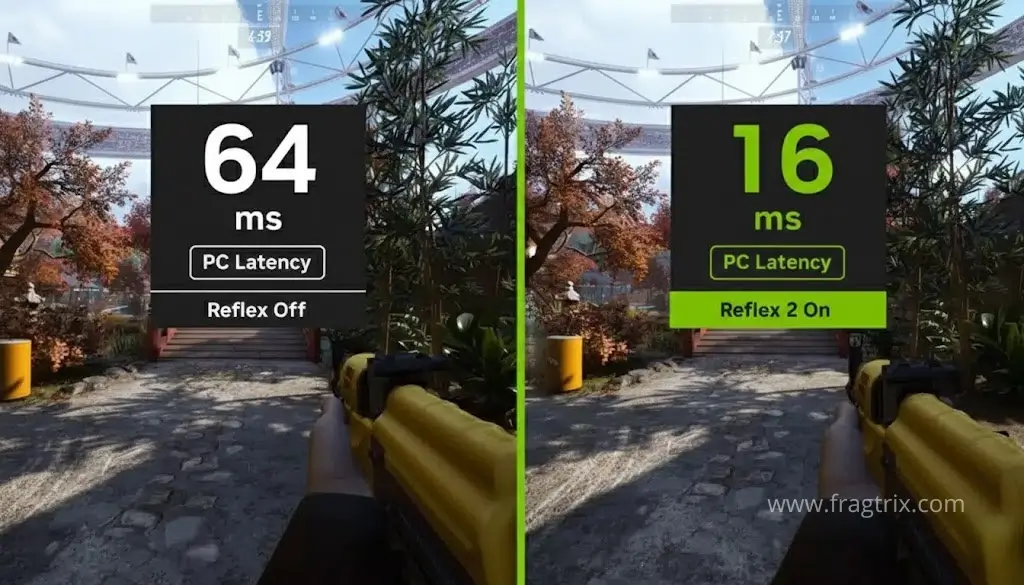
do not enable frame generation as it can add significant latency and reduce performance. technologies like nvidia Reflex (especially in boost mode) can help, but you should only increase resolution if you are chasing higher fps.
disabling ray tracing and other resource-intensive rendering techniques will improve your fps. prioritize performance over graphics quality when playing ranked.
pros all play at low or medium settings at 1080p with a cap of 240 or 360 fps to avoid micro-stuttering and inconsistencies that uncapped fps can cause.
since each player is different, there is no exact scientific solution for adjusting mouse, keyboard, and controller settings. use our recommendations as a starting point and experiment. perhaps you prefer high dpi on your mouse to eliminate drag, or you have a mechanical keyboard that allows for a light touch. our best advice is to exp
with all available options, optimizing your fortnite settings requires thought. whether you play casually or competitively, whether you use a controller or keyboard and mouse, these recommendations should improve your gaming experience. treat these optimal settings as a blueprint and adapt them to your personal equipment. the best settings always equal the best balance between performance and quality for your specific hardware.
Pingback: Achieving 240 FPS on Fortnite on a Budget - Fragtrix