
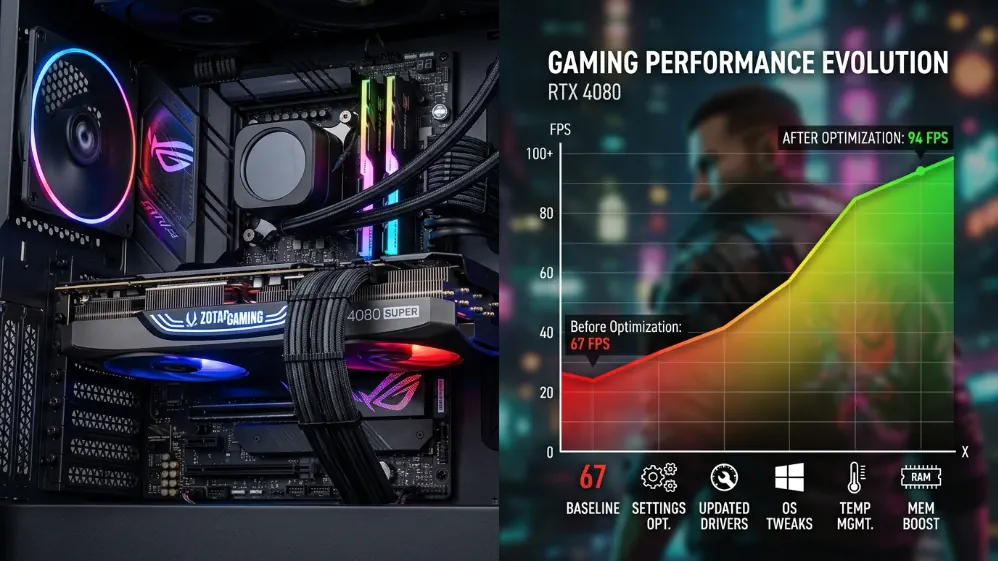
Low fps kills gaming sessions. Doesn’t matter how much you spent on your rig if you haven’t optimized it properly.
This guide covers in-game settings, driver tweaks, windows optimization, and hardware diagnostics, ranked by real-world impact based on testing across nvidia, amd, and intel systems.
Realistic expectations: software optimization typically recovers 15-30% performance depending on what’s holding you back. You’re not going to double frame rates without new hardware.
In-game settings: Where to actually start
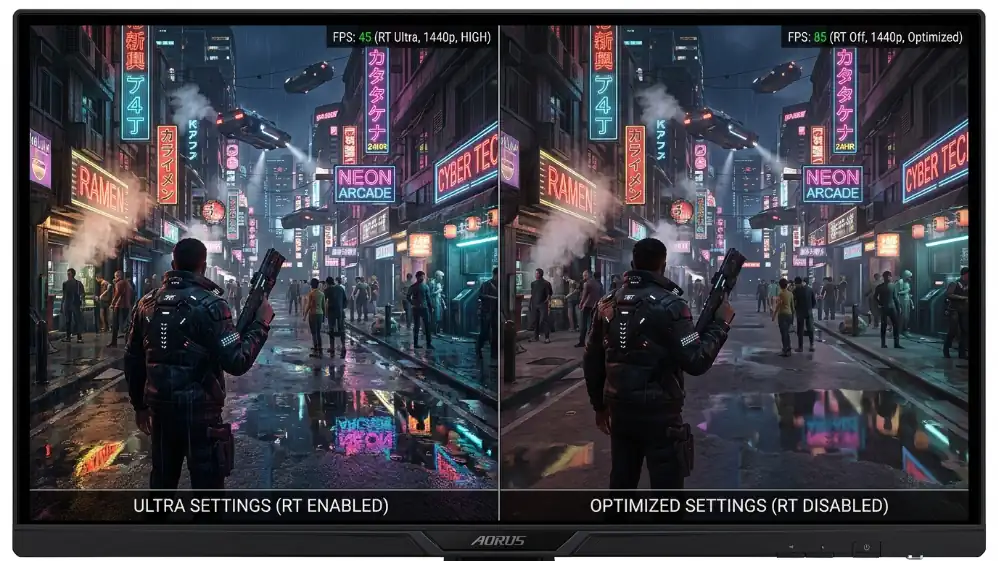
Not all graphics settings hit performance equally, shadows and ray tracing are your performance killers. Tom’s Hardware benchmarks confirm shadows can eat 30-40% of gpu resources in demanding titles, with visual payoff that often disappears during actual gameplay.
Start by dropping shadows to medium or low, in most games the difference between ultra and medium becomes invisible once you’re moving. Ultra looks better in photo mode, but during actual gameplay the difference is negligible.
Ray tracing costs 40-60% gpu performance versus rasterized rendering, unless you’re chasing cinematic visuals, disable it entirely or limit it to shadows only. Full path tracing in demanding titles can cut frame rates by more than half.
Texture quality is vram-dependent, not processing-intensive. With 12gb+ vram, max those textures minimal fps cost, 8gb cards need high or medium to prevent overflow, when vram hits 95-100%, expect frame time spikes and stuttering as the driver swaps assets.
Anisotropic filtering at 16x is free on modern gpus, max it. Anti-aliasing at 1080p use taa or fxaa, at 1440p+ you can skip it, disable post-processing like motion blur, depth of field, lens flare they obscure detail without providing useful information.
| Setting | Low Impact | High Impact | Recommendation |
|---|---|---|---|
| Shadows | Medium/Low | Ultra | Medium saves 30-40% GPU |
| Ray Tracing | Off | Path Tracing | Disable unless screenshots matter |
| Textures | High (if VRAM ok) | Ultra | Max if 12GB+ VRAM |
| Anisotropic | 16x | – | Always max – Free visual upgrade |
| Volumetric Fog | Low/Off | Ultra | Disable for FPS |
| Anti-Aliasing | TAA/Off | MSAA 8x | Less critical 1440p+ |
Upscaling changed everything
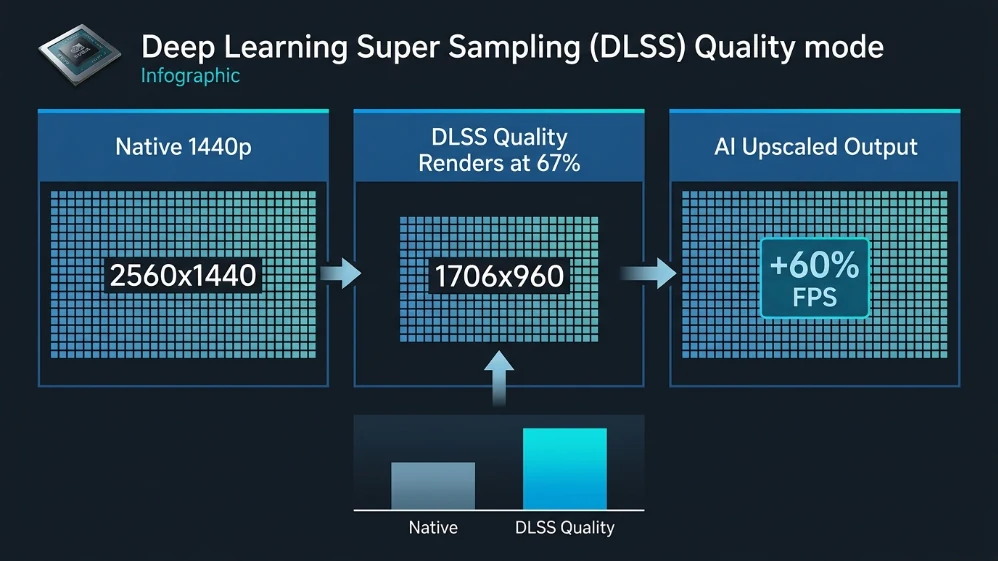
DLSS 4.5 on nvidia rtx 40/50 can deliver 50-200% fps gains depending on quality mode and game, quality mode at 1440p typically provides 40-60% performance boost with visuals nearly indistinguishable from native rendering.
FSR 4 from amd works across all gpus with similar gains, slightly softer output, quality mode renders at roughly 67% target resolution, usually delivering 40-60% fps improvements.
Frame generation doubles or triples frame counts but adds input latency, for single-player games it’s fantastic, for competitive play, skip it and stick with quality upscaling.
| Technology | GPU Support | Typical FPS Gain | Games |
|---|---|---|---|
| DLSS 4.5 | RTX 40/50 | 50-200% (varies) | 650+ |
| FSR 4 | Universal | 40-150% (varies) | 400+ |
| XeSS 2 | Arc | 40-120% (varies) | 60+ |
Windows 11: Three settings that matter
Disable VBS (the big one)
Virtualization-based security can cost 5-15% fps in cpu-intensive games, impact varies cpu-bound scenarios at lower resolutions see the biggest difference, gpu-bound at 4k might not notice.
Caveat: this is a legitimate security feature, for dedicated gaming rigs it makes sense to disable, work laptops? Leave it on.
Settings > privacy & security > windows security > device security > core isolation > memory integrity: off.
Power plan
Control panel > power options > high performance. Prevents cpu downclocking, eliminates micro-stutters. Desktops use high performance, laptops on ac use ultimate performance (unlock via powershell).
Hardware-accelerated GPU scheduling
Settings > system > display > graphics > turn it on. Reduces cpu overhead. Primarily benefits high-refresh gaming in cpu-limited situations, typically providing 5-7% gains with modern gpus.
Disable unnecessary startup programs, close browsers before gaming. Discord overlay can cause stuttering try disabling it if you get random frame drops.
GPU driver settings
NVIDIA
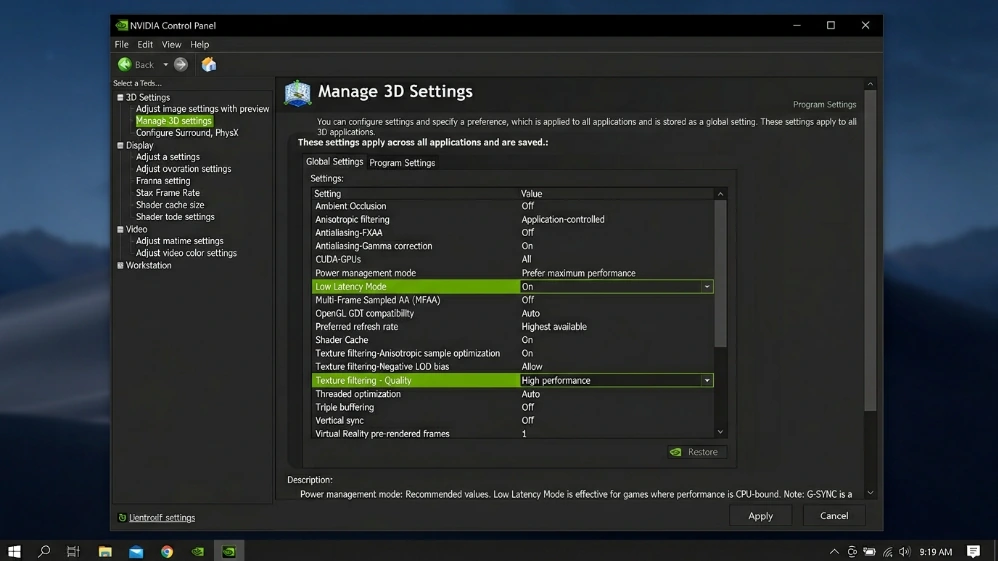
Power management: prefer maximum performance in global settings, prevents gpu downclocking that causes stuttering, this toggle eliminates micro-stutters in many titles.
Low latency mode on or ultra typically cuts input lag 10-20ms, if game has nvidia reflex, use that instead it’s more effective.
Texture filtering quality: high performance, provides 2-4ms frame time improvement with no visible difference.
G-sync setup: enable in control panel, v-sync on in control panel but off in-game, cap fps 3 below refresh rate (141 for 144hz).
AMD
Enable radeon anti-lag globally. On rdna 3, anti-lag+ requires developer integration (counter-strike 2, dota 2).
Smart access memory (resizable bar) can deliver 5-15% gains on ryzen 3000+ with rx 6000+, varies by game. Enable in both bios (“above 4g decoding” + “resizable bar”) and drivers.
Disable radeon boost and chill. Enable freesync, v-sync off globally.
Thermal throttling: The Silent Killer
Thermal throttling reduces clock speeds when temps get high, Shows as strong initial fps degrading after 15-20 minutes. MSI Afterburner shows clock drops with temp spikes, this can go unnoticed for months once fixed, performance often jumps significantly.
| Component | Ideal | Throttle Starts | Laptop Normal |
|---|---|---|---|
| CPU (Desktop) | <85°C | 90-95°C | 85-90°C |
| GPU NVIDIA | <80°C | 83-90°C | 85-90°C |
| GPU AMD | <83°C | 95°C+ | 88-92°C |
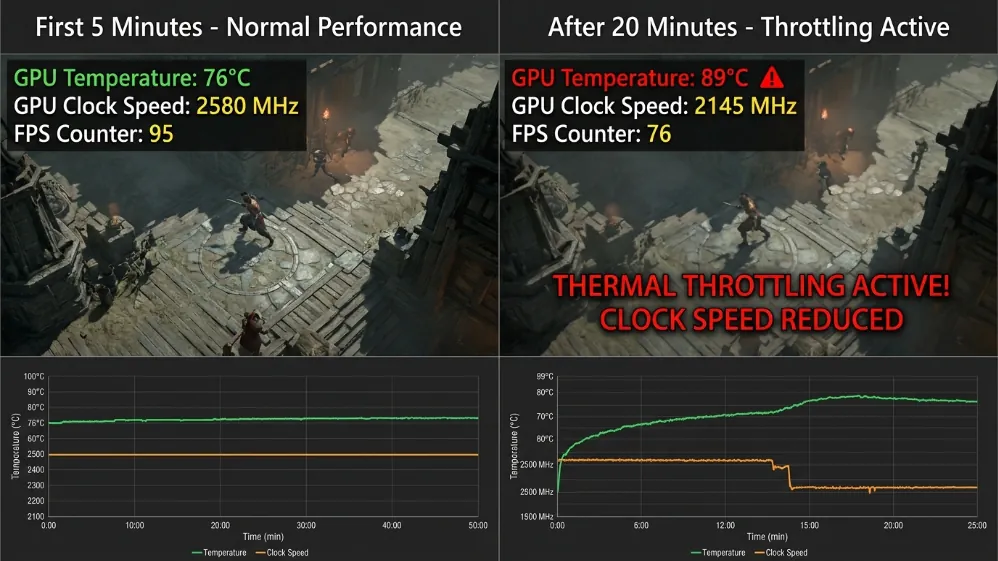
Fixes: clean dust with compressed air (temps can drop 10-15°c), replace thermal paste if 2-3+ years old, improve case airflow, try undervolting. Aggressive fan curves help but increase noise.
Bottleneck diagnosis
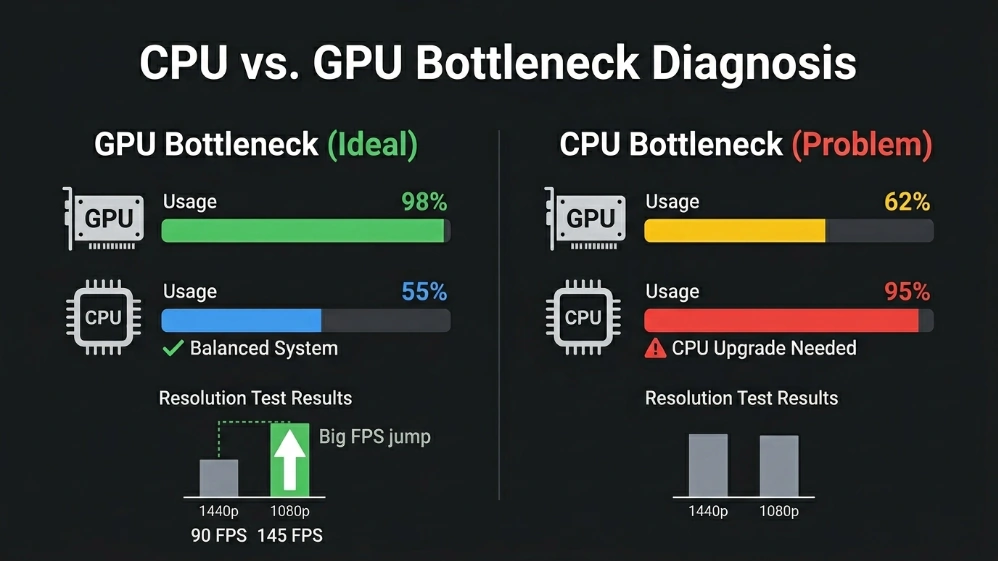
Use msi afterburner overlay showing gpu/cpu usage. GPU 95-100% + cpu 40-70% = gpu bottleneck (ideal). CPU 85-100% + gpu <70% = cpu bottleneck (problematic).
Check per-core usage some games max specific cores while overall looks fine, Strategy and simulation games are notorious for this.
Resolution test: drop 1440p to 1080p. Big fps gain = gpu bottleneck, minimal change = cpu bottleneck. A small fps difference indicates cpu limitations that won’t improve without cpu upgrade.
XMP/EXPO: everyone forgets this
Your ram probably runs slower than rated; DDR4 defaults to 2133mhz, DDR5 to 4800mhz regardless of kit rating.
Enter bios, find memory overclocking, enable xmp (intel) or expo (amd), select profile 1, save. Verify in task manager.
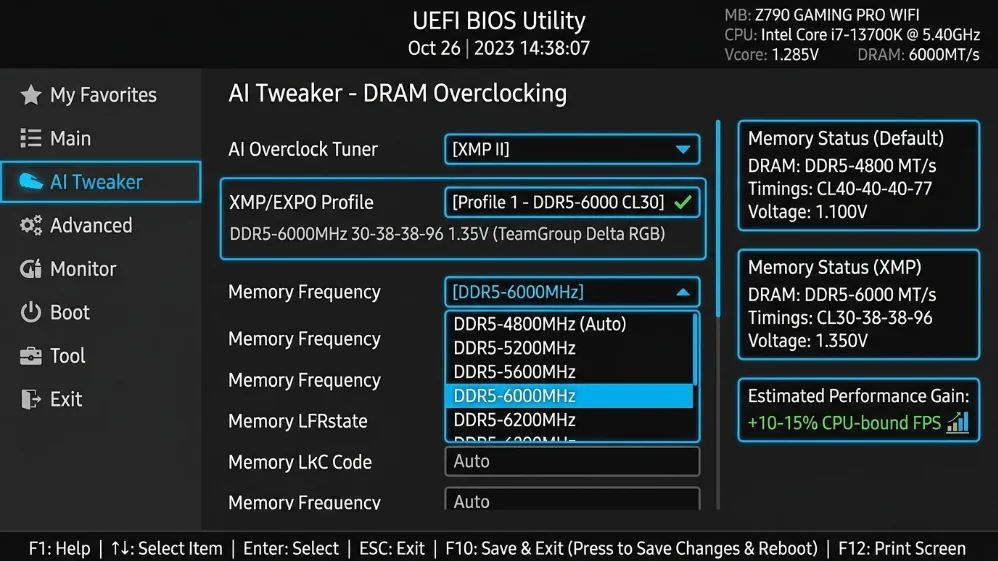
AMD ryzen can see up to 10-15% gains in cpu-bound scenarios. Enabling proper memory profiles can provide double-digit fps improvements from a single bios setting.
DDR5-6000 cl28-30 is sweet spot for amd am5, intel lga1851 handles ddr5-6400 cl32 well. Dual-channel matters two 16gb sticks way better than single 32gb.
Priority order
Enable xmp/expo (30 seconds, up to 10-15% on amd), disable vbs where appropriate (5 minutes, 5-15%). Use quality upscaling (instant, 40-60%), fix thermal throttling (recovers lost performance).
Power plan + driver configs + background cleanup + graphics settings add another 5-10%.
Well-optimized systems can see 30-40% fps improvements from software tweaks alone, no new hardware required.
Smooth frame times matter more than peak fps. Locked 60 with tight pacing beats fluctuating 45-90 with stutters. Enable upscaling before lowering resolution. Disable most demanding settings first. Verify ram runs at rated speed.
Pingback: Windows 11 Low Latency Mode: Up to 70% Faster - Fragtrix