Your PC reboots in the middle of a match. No blue screen, no error, nothing in the logs. So you blame the GPU, then the drivers, then Windows. The power supply usually gets checked last, and sometimes it’s the one at fault.
The problem is that PSU symptoms look a lot like a bad GPU, bad RAM or an unstable overclock, so it’s easy to chase the wrong part. Here’s what the manufacturers and a few big hardware sites say about the signs you need to upgrade your PSU, how to tell them apart from other causes, how much age matters, and when a new unit makes sense.
What a Failing PSU Actually Looks Like
The Symptoms Seasonic Ties to the PSU
Seasonic published a diagnosis guide in June 2026, written by a product design manager at the company. It lists four patterns that can point to the power supply:
- Sudden shutdowns under load: the PC is fine on light tasks, then switches off minutes after a game or render starts.
- Random reboots with no blue screen, no error message and no clear reason.
- Freezes, black screens or reboots under load right after a GPU upgrade, even though the card is installed correctly.
- Startup problems: the PC doesn’t power on reliably, shuts down during boot, or needs several tries.
Seasonic adds that a PSU problem can let the system run fine for days before it crashes again, and that it often seems random. That makes it hard to track down.
Why It’s Hard to Pin Down
PC Gamer’s older guide on testing a power supply lists similar symptoms: random crashes, random blue screens, unusual noise from the case, components failing repeatedly, and a PC that won’t start while the case fans spin. The author says those symptoms “could have many possible causes,” so the other hardware gets checked first and the PSU last.
Seasonic points to short power spikes from the GPU, lasting only a few milliseconds. A PSU without enough headroom, or not built to handle that behavior, may fail to keep voltage stable or may trigger its protection and shut the PC down. Because the spikes are so brief and hard to trigger on demand, the failures feel random. If you want the engineering side, our ATX 3.1 and 12V-2×6 PSU guide covers how newer units are designed for it.
What Looks Like a PSU Problem but Isn’t
Seasonic says the GPU and the PSU can produce similar symptoms, and gives a quick way to lean one way or the other. It’s their own summary, so take it as a rule of thumb:
| What you see | Where it points (per Seasonic) |
|---|---|
| Artifacts, glitches or driver crashes | GPU |
| Black screen plus immediate reboot | PSU |
| Crashes only in games or 3D apps | GPU or driver |
| Shutdown under load | PSU |
| Stable at idle, fails only at peak load | More likely PSU |
These are indicators, not a definitive diagnosis.
The same guide names other causes you should rule out first: overheating (the system throttles or shuts down to protect itself), a poorly seated 12VHPWR/12V-2×6 cable, a sharp bend near the connector or a low-quality adapter, overclocking without stability testing, and outdated or unstable GPU drivers.
Age, Wear and When “Old” Starts to Matter
What the Sources Say About Age
Nobody gives a precise lifespan. What you get is guidance:
- Tom’s Hardware (February 2026) says the capacitors and other components inside “slowly and invisibly wear out with time and use,” and suggests considering a proactive replacement for systems around five years old or older, for a PSU carried over from an older build, or for machines under heavy continuous load or in hot rooms. It says a build only a couple of years old is unlikely to need it. That’s the author’s judgment, not a measured failure rate.
- Seasonic’s diagnosis guide lists an old PSU used at its limit among the common mistakes, and warns about wear building up over five to seven years or more. It doesn’t give an exact lifespan either.
- PC Gamer adds a counterpoint: if you buy a quality PSU, it’s unusual for one to fail.
So age alone isn’t a diagnosis. It’s a reason to look closer, especially if the system works hard or runs hot.
What a Failure Can Take With It
Tom’s Hardware’s argument is that because the PSU is connected to every part of the system, it presents a risk of downstream failures that other components don’t. In the author’s own example, a friend’s eight-year-old workstation (with a 10-year-warranty PSU) died after a weird noise. The motherboard was affected too, and the repair meant weeks of downtime and hundreds of dollars in new parts. The piece also notes that PSU warranties usually cover only the unit itself, not the parts it may have damaged.
That’s one reported case, not a statistic, but it shows the kind of damage a PSU failure can cause.
How to Check Before You Spend Money
The Free Checks First
PC Gamer suggests this order, retesting after each step:
- Make sure the switch on the back of the PSU is on.
- Check the power cable is firmly seated at the wall and at the PC.
- Try a different power cable and a different wall socket.
- Look inside for loose power connectors feeding drives and other parts.
- Strip the system down to the boot drive and the graphics card (or just the boot drive if the CPU has integrated graphics) and test again.
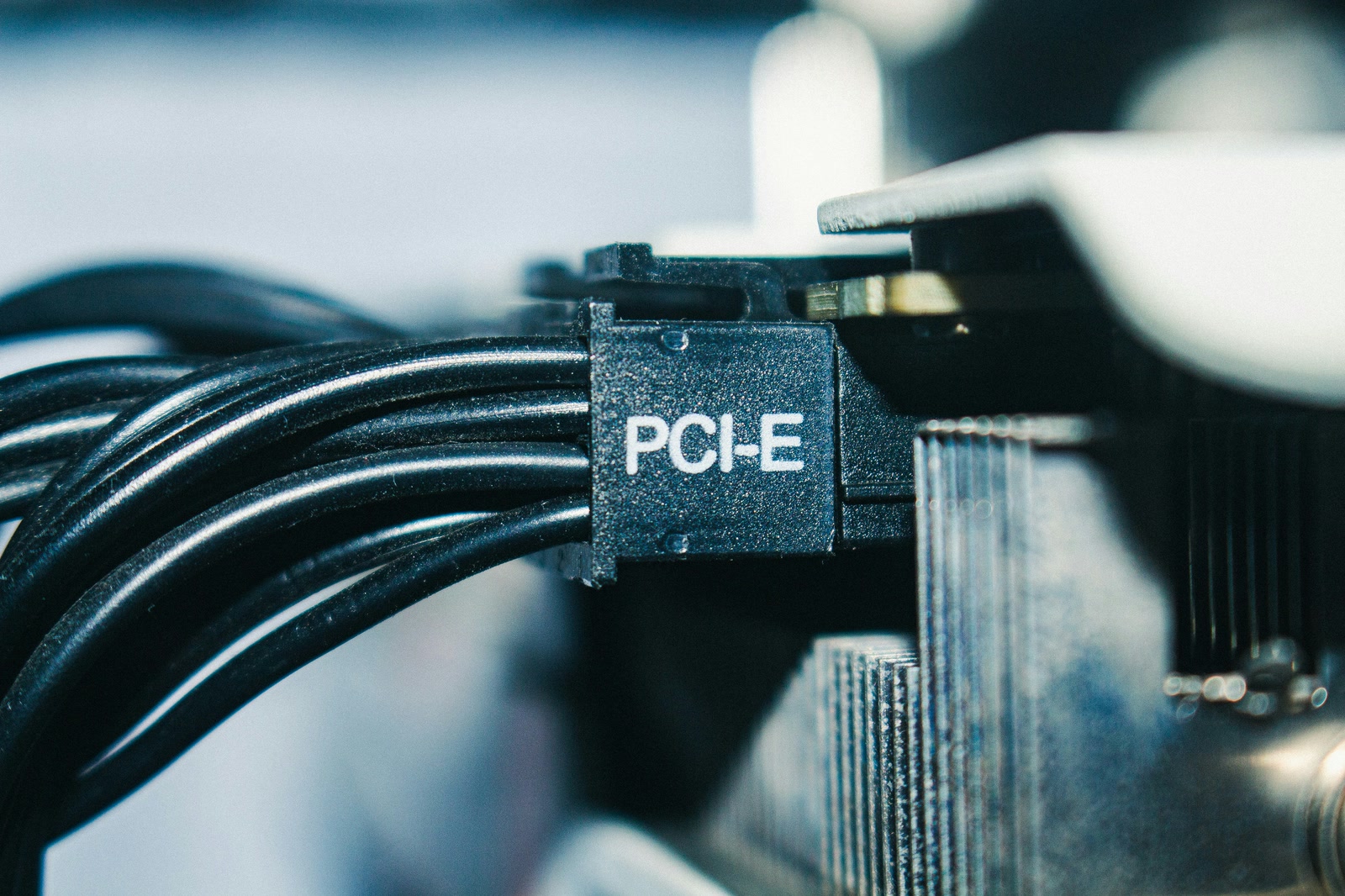
Seasonic’s checklist adds a few that matter for gaming PCs: note exactly when the crash happens, check whether it started after a GPU or PSU change, reproduce it with the same load, look in Windows Event Viewer, watch temperatures during the first 10 to 30 minutes at peak load, re-seat the 12V-2×6 or PCIe cables, and turn off any CPU or GPU overclock. In Event Viewer, GPU driver resets point toward the GPU, while no logs at all often points toward the PSU.
The Swap Test
If the free checks don’t settle it, PC Gamer’s next step is a swap. Leave the existing PSU in the case but disconnected, hook a spare PSU up to the motherboard, the boot drive and the GPU if needed, and run the PC. If it behaves normally, the original PSU was the problem. The spare obviously has to be able to power whatever you connect to it.
What a Paperclip or a Tester Can and Can’t Tell You
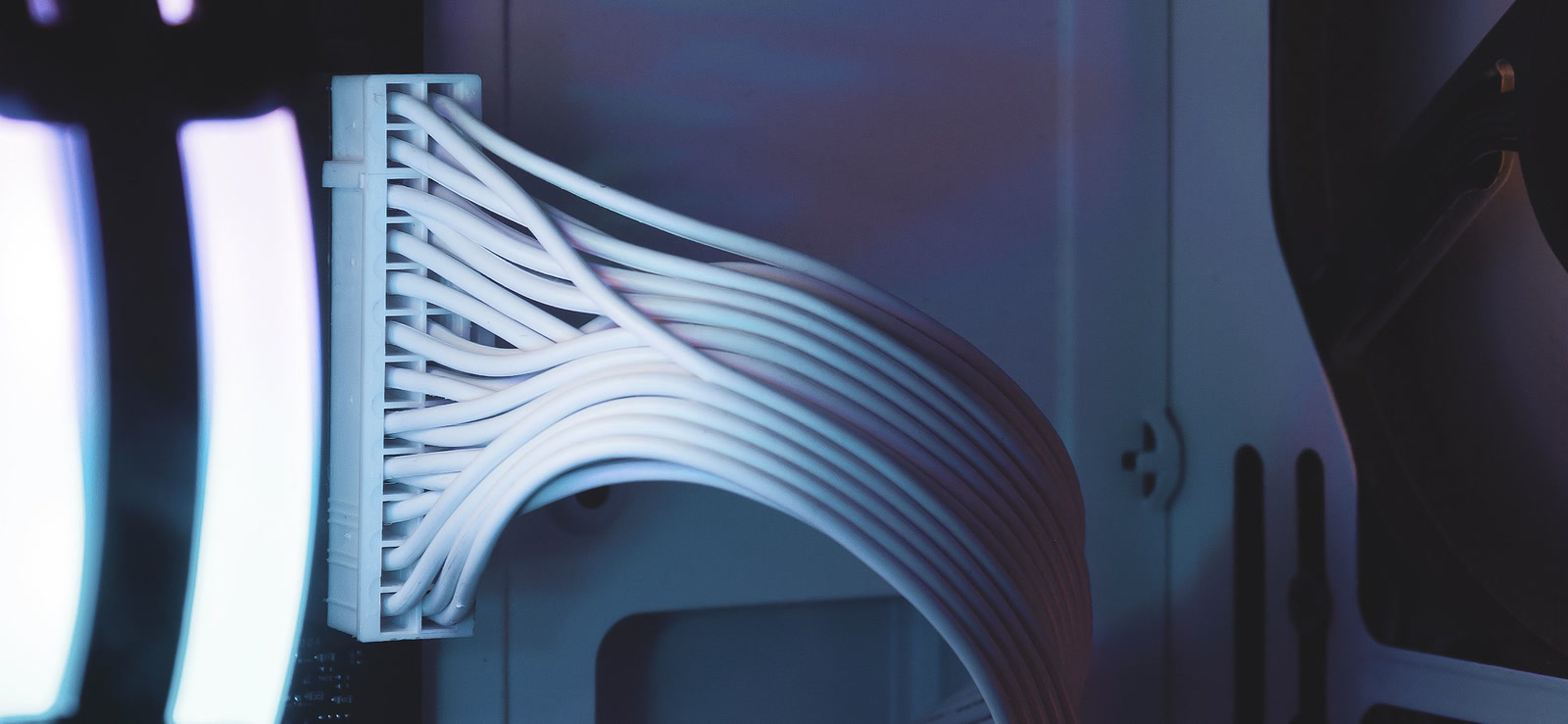
Corsair’s guide describes three methods: the paperclip test, a multimeter and a PSU tester. For the paperclip test, you jump pins 16 and 17 on the 24-pin connector with everything else unplugged, and see whether the fan spins. Corsair also warns that jumping the wrong pins may cause injury and damage the PSU.
That test runs with almost nothing connected, so it tells you the unit can switch on, not how it behaves when a game loads the GPU. Testers have their own catch: Corsair notes that with ATX 3.0 and newer PSUs, testers often show a false reading of around -13 V or more on the -12 V line, and that newer power-good timing requirements mean many testers show a PG error on newer units that are working correctly. So a scary reading on a tester isn’t proof by itself.
If a voltage is clearly out of range, Corsair asks you to open a support ticket with photos.
Don’t Open It
Corsair’s power supply manual is blunt about this: don’t open the power supply case or attempt to repair it. There are no user-serviceable components, and high voltages are present.
When It’s Time to Upgrade
Before a New GPU
The clearest case is a new GPU. These numbers come straight from Nvidia’s RTX 5070 family page and AMD’s RX 9070 XT page, and they’re minimums for the whole system, not targets:
| Graphics card | Power of the card | Minimum PSU recommended |
|---|---|---|
| GeForce RTX 5070 (Nvidia) | 250 W total graphics power | 650 W |
| GeForce RTX 5070 Ti (Nvidia) | 300 W total graphics power | 750 W |
| Radeon RX 9070 XT (AMD) | 304 W typical board power | 750 W |
Nvidia’s footnote says its figure is based on a PC configured with a Ryzen 9 9950X, and that requirements can vary with the system. So if your CPU draws a lot, or you overclock, a minimum may not leave you much room. Seasonic also lists focusing only on rated wattage and ignoring transient spikes as a common mistake, which is a good reason not to buy the bare minimum.
Tom’s Hardware’s advice is to buy the new PSU before a CPU or GPU upgrade, and for a recent card, a unit with a native 12V-2×6 cable avoids adapters. If your current PSU came from an older build, our guide on what to keep and what to replace when reusing old parts walks through where the PSU fits.
If Your PC Is a Prebuilt
Before you upgrade the card in a prebuilt, check what unit is inside and whether it’s a standard one. Our piece on upgrading a prebuilt covers the proprietary power supplies some brands use.
Replacing It Safely
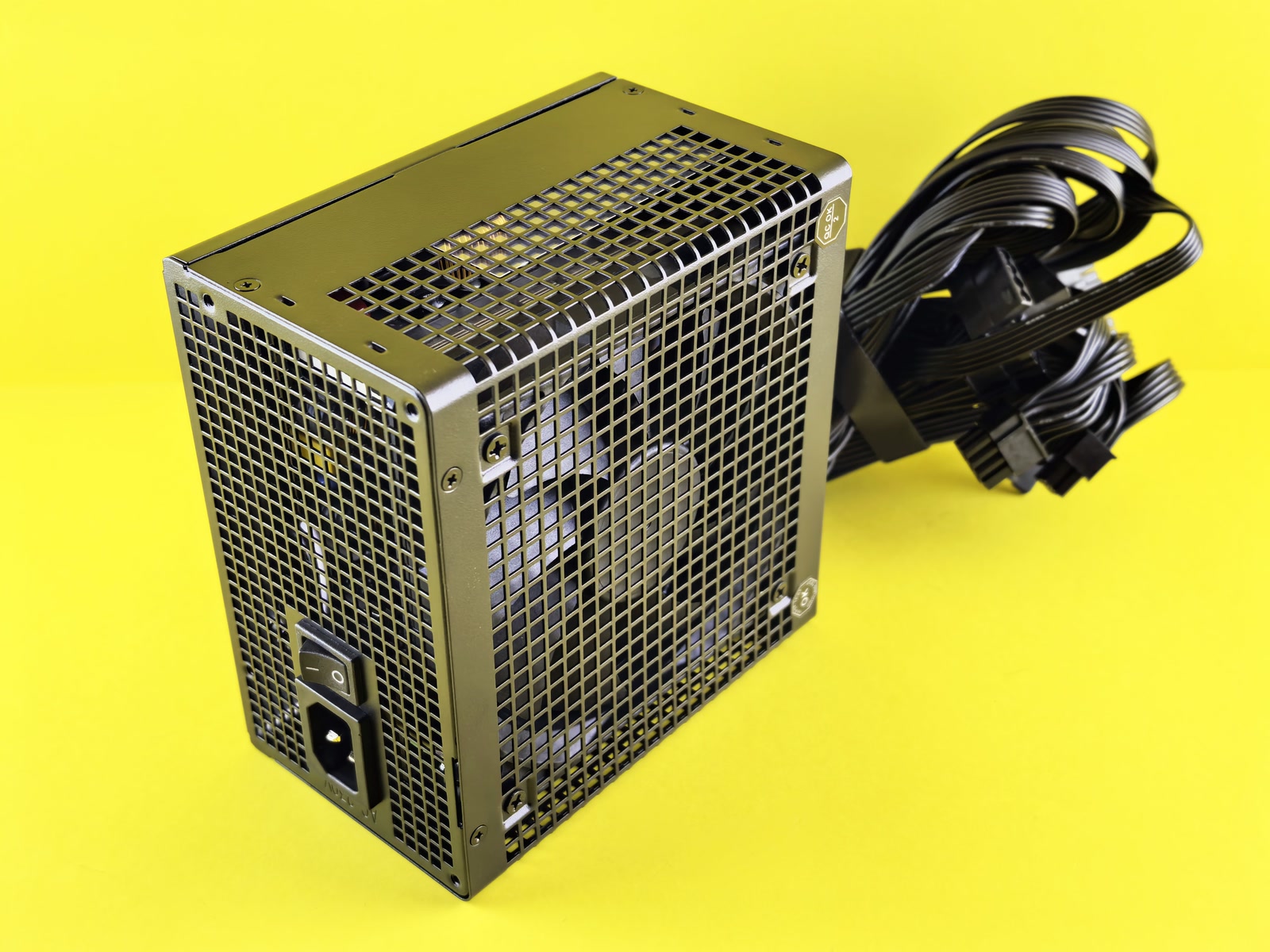
Corsair’s replacement steps are short. Disconnect the AC power cord from the wall (or UPS) and from the old PSU, disconnect all the power cables from the GPU, motherboard and peripherals, remove the old unit following your case manual, and make sure the new unit’s AC cable isn’t plugged in while you install it.
Tom’s Hardware also suggests a surge protector or a UPS upstream of the PC. And if you’re choosing a model, the ATX 3.1 and 12V-2×6 guide is the place to start.
The Short Version
A PSU problem usually shows up as sudden shutdowns or reboots under load with no error, especially after a GPU upgrade. The GPU, a loose cable, heat or drivers can cause the same thing, so rule those out first, and use a swap test if you can. Age matters, but there’s no magic number. Never open the unit, and check the manufacturer’s minimum wattage before you buy a new GPU.