
Your gaming PC can perform much better than it does now. The problem is not your components. Software bloat slows down your system. Outdated settings reduce your frame rate. Background processes steal your performance. You can fix all these issues without spending money.
This guide shows you how to boost FPS significantly. These methods work on mid-range systems. They also work on older computers. You will transform your gaming experience for free.
Clear digital clutter
Your operating system collects junk files over time. Temporary files pile up quickly. Cached data takes up space. Old installers remain on your drive. All this clutter slows down your hard drive. It increases load times during games. It causes frame drops when streaming assets
Use the disk cleanup utility in windows. Right-click your c drive and select properties. Click on disk cleanup. Check all boxes except downloads. Let the tool run completely. This process usually frees up 10 to 20 gigabytes. Your system will respond faster after cleanup.
Now fix your startup programs. Press control shift escape together to open task manager. Go to the startup tab. Disable programs you don’t need at boot. RGB controller software can wait. Chat applications can wait too. Cloud sync tools don’t need to start automatically. Each disabled program frees up memory and processor cycles.
Check your background processes next. Sort the processes tab by cpu usage. You can also sort by memory usage. Do this while your system is idle. Look for programs using significant resources. Investigate anything you don’t recognize. Browser helper objects run constantly. Updater services run constantly too. These tools steal performance from your games.
Optimize graphics settings strategically
Game graphics settings affect performance differently. Some settings hurt frame rate badly. Others have minimal impact on visuals. Understanding this difference helps you optimize better.
Shadows kill performance in modern games. Ultra shadow quality looks similar to high settings. But ultra shadows cost 20 to 30 percent frame rate. Drop shadows to medium or low instead. You won’t notice softer edges during action. You will definitely feel smoother gameplay though.
Anti-aliasing needs special attention here. MSAA provides beautiful edge smoothing. SSAA does the same thing effectively. Both methods destroy frame rates on older hardware. Switch to TAA or FXAA instead. These methods add slight blur to edges. But you gain 40 to 50 percent more frames. The visual tradeoff is barely noticeable during gameplay.
Motion blur looks pretty in screenshots. Ambient occlusion does too. Depth of field also looks nice in stills. But all three hurt performance during actual gameplay. Ambient occlusion adds realistic shadows in corners. Motion blur simulates camera movement effects. Depth of field blurs distant objects realistically. Turn off motion blur completely first. Many players find it nauseating anyway. Set ambient occlusion to low or off. Set depth of field to low or off too.
Texture quality can stay at high or ultra. This assumes you have enough video memory available. Textures use memory instead of processing power. Keep textures crisp if you’re not maxing out memory. View distance affects performance differently across games. Particle effects do too. Volumetric lighting has its own performance impact. Test each one individually in your games. Lower them one at a time carefully. Monitor your frame rate after each change. Find the sweet spot for your specific system.
Update graphics drivers
Graphics drivers translate between games and your gpu. Outdated drivers miss important performance optimizations. They can actively cause problems too. Crashes happen more often with old drivers. Stuttering becomes common during gameplay. Frame rates drop unexpectedly in certain scenes. Both nvidia and amd release regular driver updates. These updates tune performance specifically for new games.
Download drivers from the manufacturer’s website directly. Nvidia users can use geforce experience software. Amd users should use amd software adrenalin edition. Always choose clean install when updating drivers. This removes old driver remnants completely. Old files can conflict with new versions. Clean install takes slightly longer to complete. But it prevents weird issues later on.
Open your graphics control panel after updating. Nvidia users should change power management mode settings. Set it to prefer maximum performance option. This keeps your gpu at higher clock speeds. It stops trying to save power constantly. Amd users need to check gpu workload settings. Set it to graphics mode for gaming.
Turn off v-sync in your driver control panel. Only keep it on if you see screen tearing. V-sync matches frame rate to monitor refresh rate. This sounds good in theory initially. But it introduces noticeable input lag. It causes stuttering when frames drop below refresh rate. Modern games handle this better with internal settings. Technologies like g-sync work better for this. Freesync works better too for amd users.
Open nvidia control panel if you have their cards. Navigate to manage 3d settings menu. Adjust these specific options carefully for gaming. Set low latency mode to ultra setting. Set texture filtering quality to performance mode. Turn on threaded optimization feature. These changes reduce input delay noticeably. They improve how your gpu handles multiple tasks.
Adjust windows settings
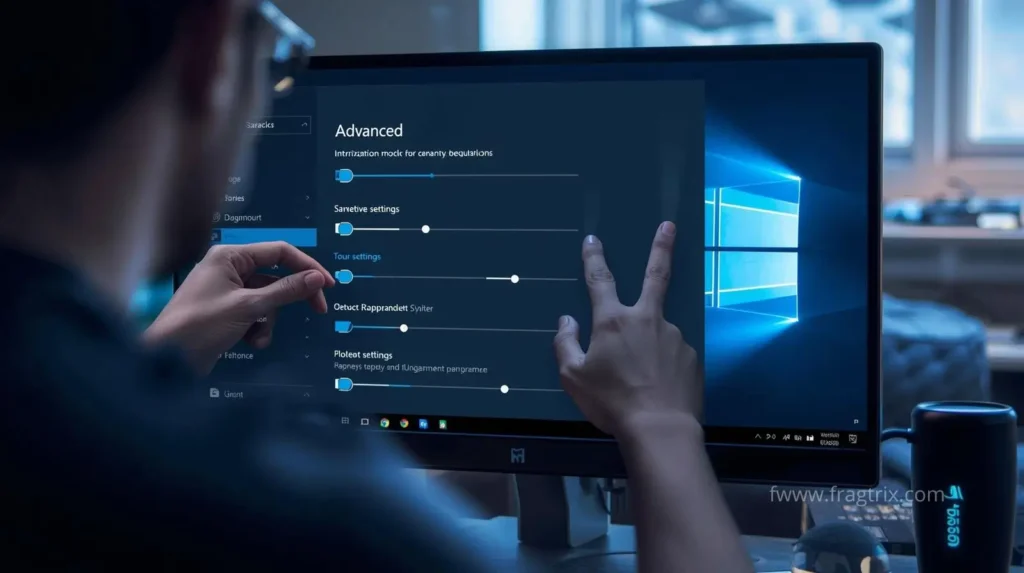
Windows 10 ships with general computing features enabled. Windows 11 does the same by default. The operating system indexes files constantly in background. It updates in the background regularly too. It runs visual effects that look nice. All these features consume valuable system resources. Tweaking settings redirects that power to your games.
Start with game mode first. Press windows key plus g together. This opens the game bar overlay. Click the settings gear icon. Make sure game mode is enabled here. This tells windows to prioritize your game process. It allocates more cpu resources to games. It allocates more gpu resources too automatically. The benefit varies by system configuration. But it’s free to enable instantly.
Disable windows visual effects next for better performance. Type sysdm.cpl in the search box. Hit enter to open system properties. Go to the advanced tab at top. Click settings under performance section. Select adjust for best performance option. This disables all visual effects instantly. You can choose custom instead if preferred. Manually disable animations this way selectively. Disable shadows too for windows. Disable transparency effects as well. Keep font smoothing enabled for readability.
Windows update picks bad moments for downloads often. It installs updates at inconvenient times regularly. You shouldn’t disable updates entirely though. Security matters for your system protection. But you can set active hours instead. Go to settings first. Then update and security section. Click windows update. Click change active hours option. Set these to your typical gaming times. Windows won’t restart mid-session now. It won’t hog bandwidth during online play either.
Background apps drain resources even when minimized. Navigate to settings menu. Then privacy section. Then background apps. Toggle off everything except essential applications only. Your email client doesn’t need constant refreshes. Social media apps don’t need them either. Not while you’re gaming actively.
Control temperatures
Heat kills performance silently over time. Your cpu reduces speed when too hot. Your gpu does the same thing automatically. This prevents damage to expensive components. The process is called thermal throttling. It directly lowers your frame rate noticeably. It causes stuttering during intense games. It makes performance inconsistent between sessions. Better cooling management solves this problem. You don’t need better components necessarily.
Download free monitoring software first. Hwmonitor works well for this purpose. Msi afterburner does too for monitoring. Core temp is another good option. Watch your temperatures during gaming sessions carefully. Cpus should stay below 80 to 85 degrees. Gpus can run slightly hotter safely. They’re safe up to 85 to 90 degrees. Exceeding these temperatures causes throttling immediately. Throttling kills your frame rate badly.
Dust accumulation is the most common problem here. Power down your pc completely first. Open the case carefully. Clean all fans with compressed air thoroughly. Clean heatsinks too while you’re inside. Clean all air vents thoroughly. Hold fans still while cleaning them. This prevents spinning damage to fan bearings. Even moderate dust raises temperatures significantly. A dust layer can add 10 to 15 degrees. This directly impacts gaming performance badly.
Check your fan curves after cleaning everything. Most gpus ship with conservative fan profiles. They prioritize quiet operation over effective cooling. Use msi afterburner for making adjustments. You can use your gpu manufacturer’s software instead. Create a custom fan curve profile. Ramp up fans earlier than default settings. Make them more aggressive overall at higher temps. Your system will be louder during gaming. But temperature reduction helps maintain performance. You often gain 5 to 10 percent. This lasts through long gaming sessions better.
Thermal paste degrades over time gradually. This especially affects systems over three years old. Cleaning might not help enough alone. Fan adjustment might not help either sometimes. Consider reapplying thermal paste carefully. Apply it to your cpu. Apply it to your gpu too. This requires some technical skill admittedly. Many tutorials exist online though for guidance. Fresh thermal paste drops temperatures significantly. It can reduce them by 5 to 20 degrees. This depends on old paste degradation level.
Disable overlays
Gaming platforms add overlay features everywhere now. Communication apps do the same thing. System utilities add them too constantly. Each overlay consumes precious system resources. Some cause compatibility issues with certain games. Some cause noticeable frame drops during gameplay.
Discord’s overlay is convenient but costs frames. Open discord settings menu. Click the gear icon at bottom. Go to overlay settings section. Toggle off enable in-game overlay option. Do the same for steam’s overlay too. Go to settings in steam client. Then in-game section. Uncheck enable steam overlay option. Geforce experience has an overlay too unfortunately. Press alt plus z together. Go to settings menu. Turn off in-game overlay feature. Xbox game bar needs disabling too often. Go to windows settings menu. Then gaming section. Then xbox game bar. Toggle it off completely.
Windows search indexing scans drives constantly. It consumes cpu resources steadily. It consumes disk resources too heavily. You might not rely heavily on search. You might have an ssd for your os. Disable indexing in these cases safely. Type services.msc in windows search box. Find windows search in the list. Right-click it. Select properties option. Set startup type to disabled setting. This frees up disk activity considerably. It frees up cpu cycles too.
Recording features are terrible performance hogs. Nvidia’s shadowplay monitors games constantly in background. Amd’s relive does the same thing automatically. Windows game dvr does too unfortunately. They’re all ready to capture footage instantly. Disable these unless creating content actively. For game dvr go to settings. Then gaming section. Then captures tab. Toggle off record in background option.
Real-time antivirus scanning protects your system constantly. But it scans every file access operation. Your games access thousands of files rapidly. This creates noticeable performance overhead during loading. Add game folders to exclusion lists carefully. This doesn’t compromise security much realistically. It assumes you download from legitimate sources only. But it prevents scanning during loading screens. It prevents scanning during gameplay too.
Optimize storage
Where games live matters enormously for performance. Hard disk drives create loading bottlenecks constantly. They cause stuttering during asset streaming too. You might not afford a new ssd right now. But optimizing existing storage helps performance significantly.
Move your most-played games to ssd storage. Do this if you have both drive types. Modern games load textures constantly during play. They load models during gameplay continuously. They load audio files too frequently. An ssd accesses data much faster overall. It’s 10 to 100 times faster than hdd. This eliminates stuttering completely during streaming. Your drive can keep up with game demands.
Defragment your hdd if games live there currently. Never defragment ssds though ever. It reduces their lifespan unnecessarily. But hdds benefit from regular defragmentation process. Type defrag in windows search box. Open defragment and optimize drives tool. Select your hdd from list. Click optimize button. This reorganizes fragmented files efficiently. It improves read speeds noticeably. It reduces stuttering during loading.
Keep at least 15 to 20 percent free space available. Performance degrades when drives fill up completely. The system struggles to find contiguous space then. It needs space for temporary files constantly. It needs space for virtual memory too. Delete old games you don’t play anymore. Move media files to external storage instead. Run disk cleanup again if needed regularly.
Adjust your virtual memory settings manually here. Windows manages this automatically by default. But manual configuration can help performance. Type sysdm.cpl in search box. Go to advanced tab. Click settings under performance section. Then the advanced tab again. Click change under virtual memory section. Uncheck automatically manage option. Select your fastest drive from list. Choose custom size option. Set initial size to 1.5 times ram amount. Set maximum size the same way exactly. Use megabytes for measurements here. This prevents windows from resizing constantly. It reduces disk activity during gaming significantly.
Fine-tune resolution
Resolution has the biggest impact on frame rate. It affects performance more than any other setting. Dropping from 1440p to 1080p can double frames easily. Consider reducing resolution first before other changes. Do this before touching other settings at all. The visual difference is less noticeable than expected. This especially applies to smaller monitors. It also applies during fast-paced gameplay action.
Dynamic resolution scaling offers a middle ground option. Many modern games include this feature now. It adjusts rendering resolution automatically during play. It does this on the fly constantly. You set a minimum frame rate target. Say 60 fps for example preference. The game reduces resolution when needed automatically. This maintains your target frame rate consistently. It prevents dramatic drops during intense scenes. It keeps resolution high during calmer moments though.
Field of view impacts performance more than expected. Higher fov renders more environment around you. This requires more processing power obviously. Reduce fov by 10 to 15 degrees. This yields 5 to 10 percent performance gain. Just don’t go too low with it. Very narrow fov feels claustrophobic during play. It can cause motion sickness too unfortunately.
Render scale is a powerful tool available. It’s often hidden in advanced graphics menus. This setting determines rendering resolution initially. It does this before scaling to display output. Set render scale to 80 or 90 percent. The game renders at lower resolution internally. Then it upscales to your display resolution. This provides better performance immediately. Visual degradation is minimal with this method. It’s less dramatic than reducing actual resolution setting. But it still delivers meaningful frame gains.
Cap your frame rate strategically for efficiency. You might have a 60hz monitor only. Rendering over 100 fps wastes gpu power completely. It generates excess heat too unnecessarily. Cap frame rate to monitor refresh rate exactly. You can go slightly above with adaptive sync. This reduces system load considerably. It reduces temperatures during long sessions. Your components maintain higher clocks more consistently then.
Consider overclocking
Overclocking pushes hardware beyond factory specifications safely. It provides better performance this way immediately. It requires careful attention to temperatures though. It requires attention to stability too always. Even modest overclocks yield 10 to 20 percent gains. You don’t spend money on upgrades this way. Modern overclocking is safer than ever before. Built-in protections prevent most catastrophic failures now.
Gpu overclocking delivers direct gaming improvements immediately. Download msi afterburner first for this. It works with any gpu brand available. Start conservative with your approach initially. Increase core clock by 50mhz only. Test stability with a game afterwards. Run a benchmark for 15 to 20 minutes. Monitor temperatures closely during testing. Increase another 50mhz if stable completely. Repeat until you experience crashes during testing. Watch for visual artifacts too carefully. Then back off 25 to 50mhz total. This gives you a stable overclock profile.
Memory clock overclocking helps too significantly. It often provides better gains than core clock. This applies to some games especially. Use the same approach here carefully. Increase memory clock in 100mhz increments only. Test stability after each increase thoroughly. Watch for visual glitches during gameplay. Memory overclocking doesn’t raise temperatures as much. It’s safer than core overclocking generally.
Cpu overclocking helps in certain games specifically. Cpu-bound games benefit most from this. But it requires more caution during process. It potentially needs bios changes too. You need an unlocked processor for this. Intel k-series chips are unlocked versions. Amd ryzen chips are too mostly. You need decent cooling setup. Research your specific cpu’s guides online. Even 10 to 15 percent clock increase helps noticeably. This eliminates cpu bottlenecks in games. Strategy games benefit from this especially. Simulators do too. Open-world titles benefit as well significantly.
Ram overclocking is easiest and safest method. Specifically enable xmp profiles in bios settings. Many systems run ram at default speeds only. This happens even when ram supports more speed. It might support 3200mhz or higher actually. Enter your bios during boot sequence. Usually delete or f2 key works. Find xmp or docp settings menu. Enable them simply. This provides free performance boost immediately. It particularly helps minimum fps values. Modern games benefit from this especially.
Your existing hardware has more to give still. These optimizations don’t require expensive upgrades at all. They don’t need risky modifications either really. Just systematic tuning of software settings carefully. Driver configurations matter too significantly. System maintenance is important regularly. Start with easiest changes first always. Update drivers initially. Adjust in-game settings next. Clean out dust regularly. Disable overlays everywhere. Then progress to advanced optimizations gradually. Try custom fan curves next. Configure storage properly after that. Try overclocking last carefully. Exhaust simpler options first completely. The combination of these tweaks transforms systems dramatically. A struggling system becomes smooth instantly. You often add 30 to 50 percent more frames. You eliminate frustrating stuttering completely. This stuttering ruins immersion badly. Your wallet stays intact throughout. Your games finally run properly now.
Pingback: Best PC upgrades under $150 to boost FPS - Fragtrix